While most people regard MSI Afterburner as a great piece of software for overclocking to boost your gaming experience, it also allows you to closely monitor your GPU’s performance across a range of parameters. This is an inherent part of how the application works.
As a result, if you have Afterburner on your PC, you can stay up to date with the state of your graphics card’s health at all times.
How to access GPU information through MSI Afterburner
Once the program is installed on your system, all you need to do is open it — you’ll see an interface with various components reporting the present state of your GPU.
At the bottom of the interface you can select which graphics card’s performance you wish to look at. Once you’ve selected a card, its full name and version appear in the same area.
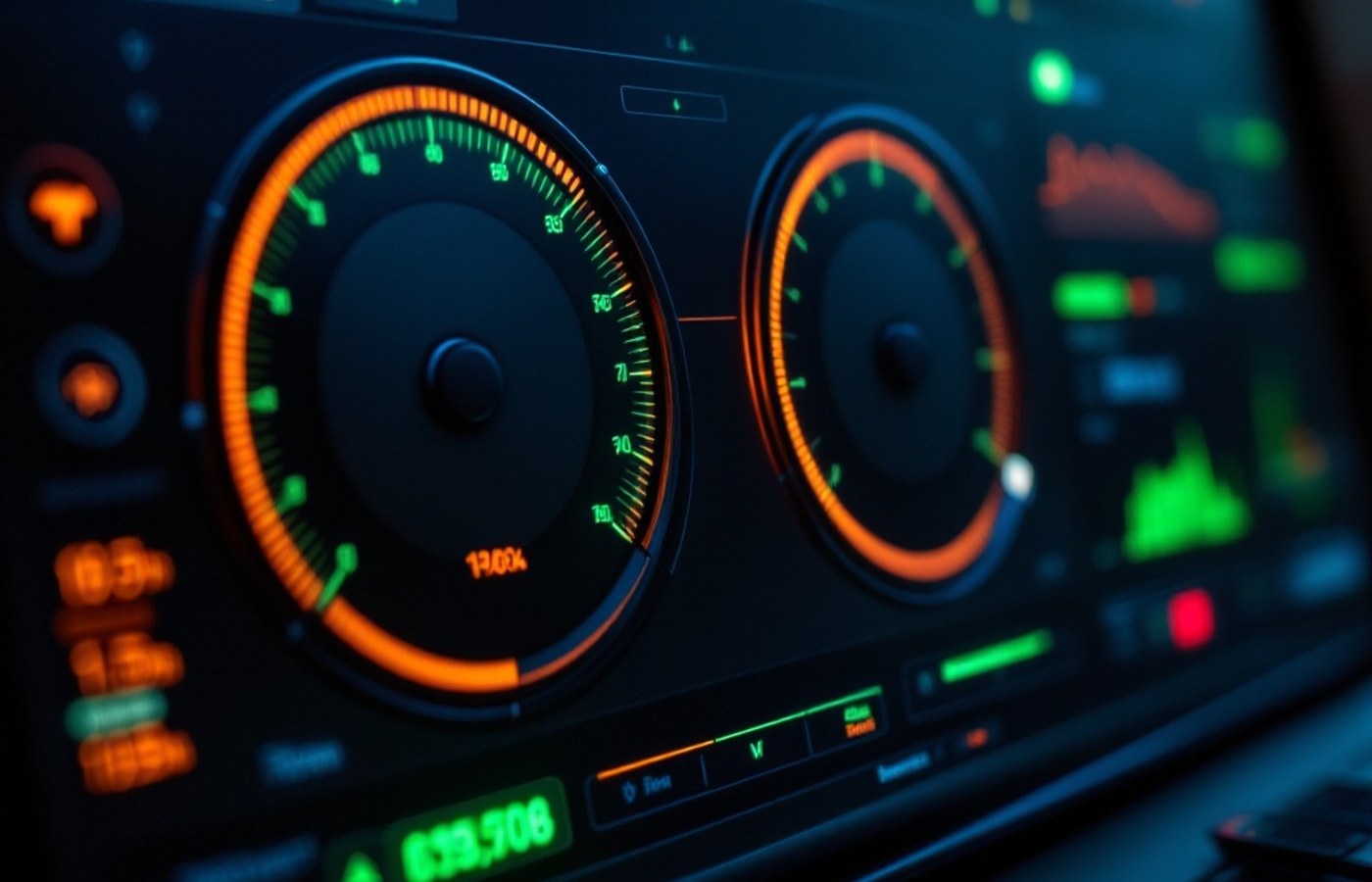
The interface has two dials, with sections showing the four essential measures of the GPU’s performance: GPU clock, memory clock, voltage and temperature. If you haven’t turned the overclocking mechanism on, these sections remain inactive.
The display also shows your GPU’s base capacity in megahertz — and, alongside it, the boost Afterburner is currently providing.If the application isn’t running, only the base capacity is shown.
The six sliders
Along with the features above, you get six sliders, which are active and adjustable only while the program is operational. They cover the important aspects of the GPU’s functioning:
- CORE VOLTAGE
- Power fed to the GPU core.
- POWER LIMIT
- Ceiling on total board power draw.
- TEMP LIMIT
- The thermal line the card must not cross.
- CORE CLOCK
- Working speed of the GPU itself.
- MEMORY CLOCK
- Working speed of the video memory.
- FAN SPEED
- Cooling effort, manual or on a curve.
Watching your card while you play
When you run a game that needed Afterburner’s help, the status of your GPU across all the parameters above can be brought up on screen with the required command — the on-screen display.
You can watch this display even as you play. It tells you how your GPU is performing, how much of its capacity it’s using for that particular game, and how far it is currently being overclocked.
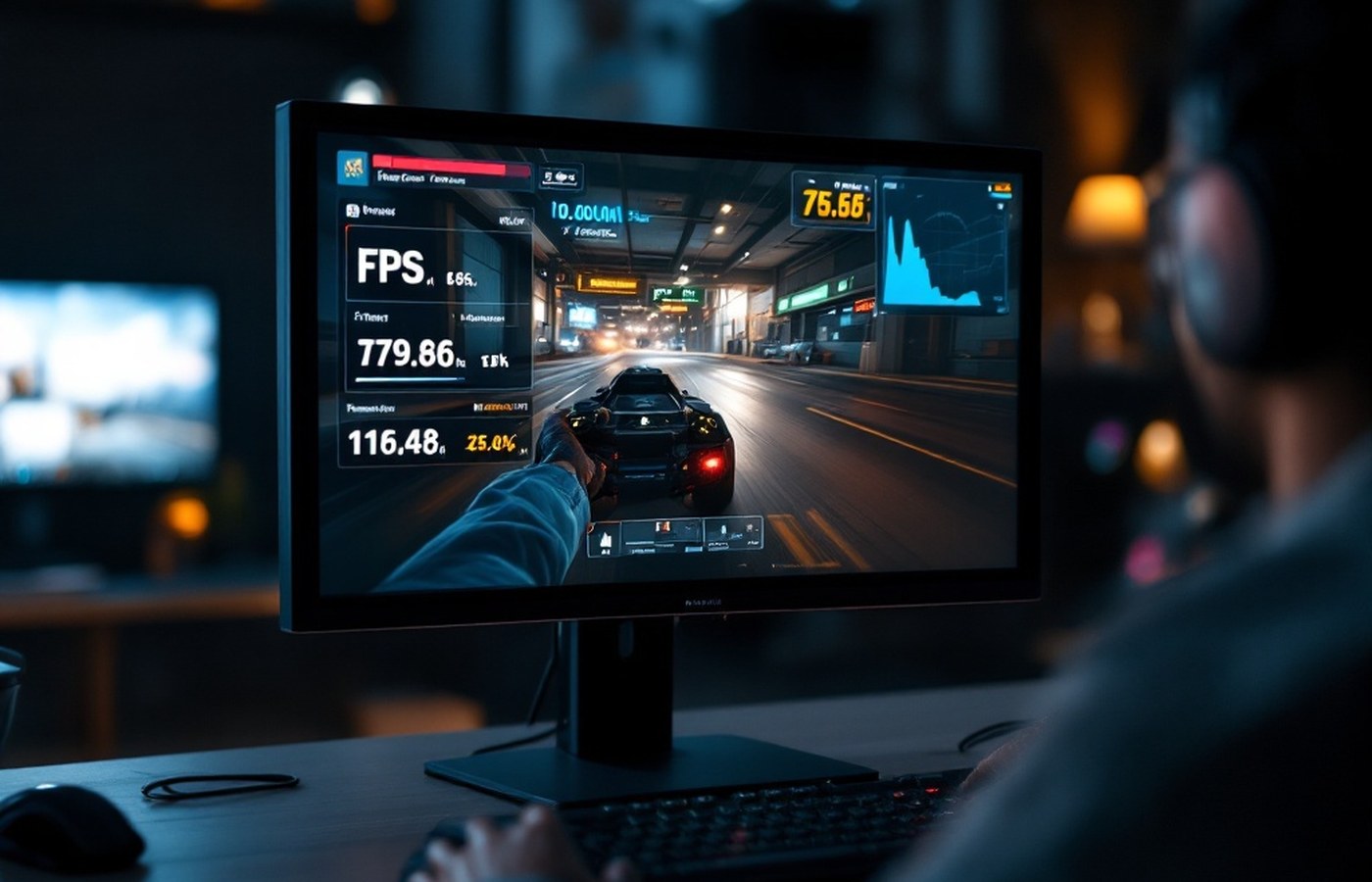
You can get more information about setting up the on-screen display from MSI itself — see the official guide at msi.com.
Customising settings
By going to ‘Settings’ you can customise your experience with Afterburner, and even choose which of its features to keep active and which to hide. Select the aspects of your GPU you want monitored regularly, and relegate the rest to the background.
MSI Afterburner may have been intended primarily to give a better gaming experience to systems whose graphics cards aren’t fully up to the game they’re playing — but it is also an invaluable tool for keeping an eye on your GPU’s health. If something starts going wrong, you’ll be warned in time to act before things get out of hand.